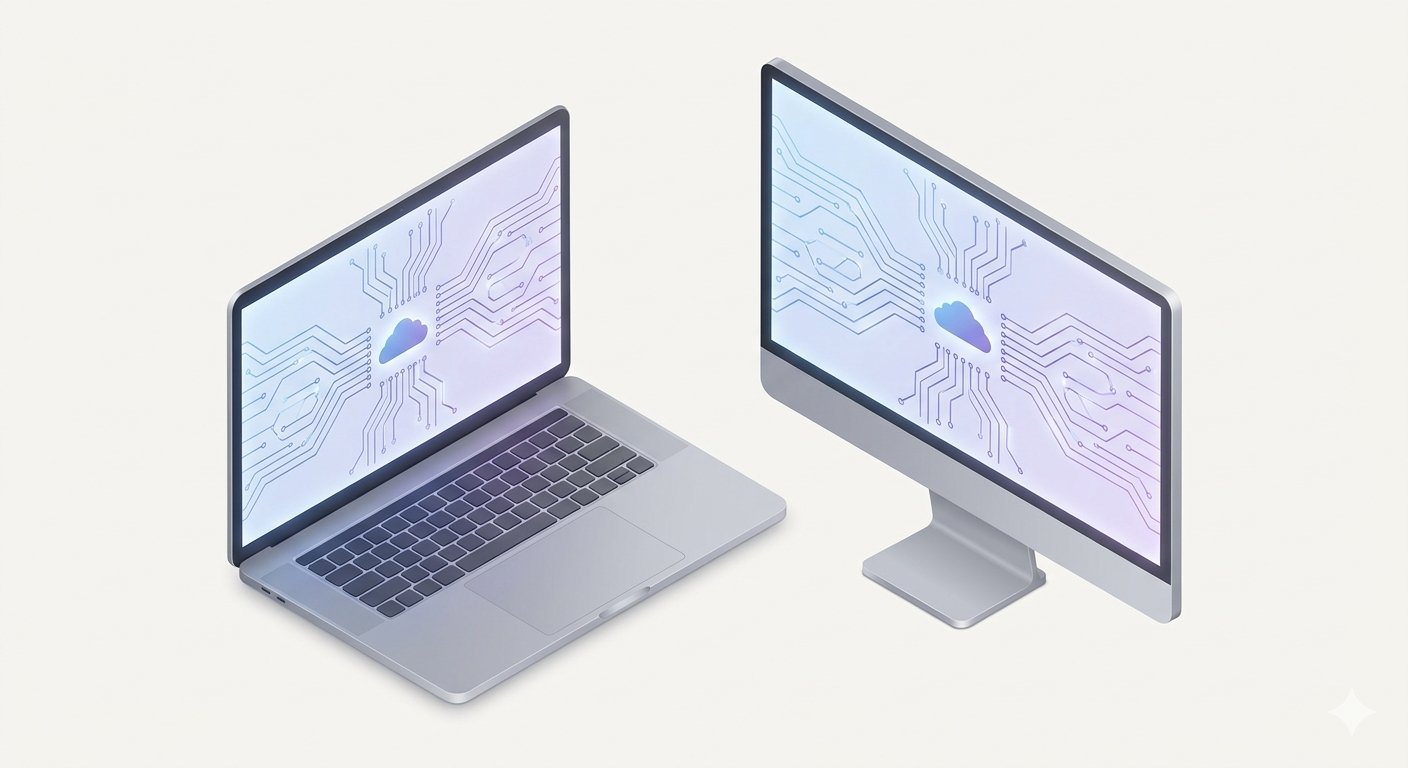
Computers and laptops form the backbone of modern education, remote work, software development, digital design, and everyday productivity. Whether you are a student writing assignments, a professional managing spreadsheets, or a creator editing videos, understanding how computers and laptops work helps you get faster performance and make smarter buying decisions.
In 2026, personal computers have become significantly faster, lighter, and more energy-efficient thanks to advanced multi-core processors, high-speed solid-state storage, and built-in artificial intelligence acceleration.
Desktop Computers vs. Laptops: Key Differences
Both desktop computers and laptops run similar operating systems and applications, but each is built for different needs and working styles.
1. Desktop Computers
- Higher Performance per Rupee: Desktops offer larger cooling systems and higher power limits, making them ideal for heavy video editing, 3D rendering, and gaming.
- Easy Upgrades and Repairs: Components like RAM, storage drives, and graphics cards can be upgraded individually over time.
- Fixed Workspace: Desktops require a separate monitor, keyboard, mouse, and continuous wall power.
2. Laptops
- Portability and Battery Power: Laptops combine the screen, keyboard, trackpad, speakers, and battery into a compact, lightweight device you can carry anywhere.
- Energy Efficiency: Modern laptop processors are engineered to deliver strong everyday performance while lasting 8 to 15 hours on a single battery charge.
- All-in-One Convenience: Ideal for students, travelers, and hybrid office workers who need flexibility without extra cables.
Core Hardware Components Explained Simply
Every computer or laptop relies on five main hardware components working together behind the scenes:
Central Processing Unit (CPU)
Often called the “brain” of the computer, the CPU executes instructions from your operating system and apps. Multi-core processors allow your computer to run web browsers, video calls, and document editors smoothly at the same time.
Random Access Memory (RAM)
RAM is your computer’s short-term working memory. When you open multiple browser tabs or software programs, they load into RAM for instant access. In 2026, 16GB of RAM is considered the sweet spot for smooth multitasking, while 8GB works well for basic browsing and study tasks.
Solid-State Drive (SSD Storage)
Unlike older mechanical hard drives (HDDs) with spinning disks, modern computers use fast NVMe Solid-State Drives. An SSD allows your laptop to boot up in seconds, open heavy apps instantly, and transfer large files quietly without moving parts.
Graphics Processing Unit (GPU)
The GPU handles images, videos, animations, and 3D graphics on your screen. Integrated graphics built into the CPU are great for everyday office work and streaming, while dedicated GPUs are built for gaming, graphic design, and AI workloads.
Motherboard and Cooling System
The motherboard connects all internal parts so they can communicate, while heat pipes and quiet fans keep temperatures safe during heavy tasks.
Popular Computer Operating Systems
Hardware needs an operating system (OS) to turn user clicks into useful actions:
- Microsoft Windows: The most widely used operating system worldwide, offering broad compatibility with office software, business tools, and PC games.
- Apple macOS: Known for smooth performance on MacBook and iMac computers, strong battery optimization, and seamless integration with iPhones and iPads.
- Linux: A free, open-source operating system popular among programmers, cybersecurity specialists, and server administrators for its speed and customization.
- ChromeOS: A lightweight, cloud-focused system built for fast web browsing, online documents, and student laptops.
Practical Checklist Before Buying a New Laptop or PC
- Define Your Primary Use: Choose an energy-efficient thin-and-light laptop for writing, browsing, and online classes, or a performance laptop/desktop for coding, video editing, and gaming.
- Prioritize SSD Storage Over HDD: Always pick a system with at least a 512GB NVMe SSD so your device stays fast for years.
- Check Display Quality and Keyboard Comfort: Look for a Full HD (1920×1080) IPS or OLED anti-glare screen and a comfortable backlit keyboard if you type for long hours.
- Verify Ports and Wireless Standards: Make sure the laptop includes USB-C charging, standard USB-A ports, HDMI output, and Wi-Fi 6 or Wi-Fi 7 support.
Essential Maintenance Tips to Keep Your Computer Fast
- Keep Storage Below 80% Full: Leaving free space on your SSD helps the operating system manage temporary files smoothly.
- Install Operating System and Driver Updates: Regular updates improve hardware stability and protect against malware.
- Clean Air Vents Regularly: Dust buildup blocks airflow and causes laptops to slow down due to heat.
- Use Reliable Antivirus and Safe Browsing Habits: Avoid downloading cracked software or suspicious email attachments.
Frequently Asked Questions (FAQs)
1. How much RAM does a laptop need for smooth daily use in 2026?
For everyday web browsing, online classes, and office documents, 8GB of RAM is the minimum requirement, while 16GB of RAM is strongly recommended for smooth multitasking and future-proofing.
2. Why is an SSD better than an older HDD hard drive?
An SSD has no moving mechanical parts, making it up to 10 times faster than an HDD, completely silent, more durable against drops, and much more energy-efficient.
3. Which is better for students: a desktop computer or a laptop?
A laptop is usually better for students because it is portable, includes a built-in battery for power outages, and can easily be carried to classes, libraries, or study groups.
4. How long does a good laptop typically last?
With proper care, regular software updates, and adequate RAM and SSD storage, a good quality laptop comfortably lasts between 4 to 6 years.
5. What is the difference between integrated graphics and a dedicated GPU?
Integrated graphics share memory with the main processor and handle everyday videos and office work efficiently, whereas a dedicated GPU has its own separate video memory designed for demanding 3D games, video editing, and AI rendering.
Conclusion
Computers and laptops remain essential tools for learning, creating, and working in today’s digital economy. By understanding core components like the CPU, RAM, SSD, and operating system, beginners can choose the right machine for their budget and maintain peak performance for years to come.